How to Read a CCTV Timestamp and Why They Glitch
What the timestamp overlay on security footage shows, why camera clocks drift or jump, how to check file metadata against it, and what corruption looks like.
The timestamp burned into the corner of a security clip carries more weight than it deserves. People treat it as a certified record, and when it skips, freezes or runs backwards they treat that as part of the event. In reality the overlay is produced by a small clock inside a cheap device, and it fails in a handful of predictable ways.
This guide explains what the overlay contains, why it goes wrong, and how to check it against the other clocks that touched the file. If you are trying to work out what happened at a given moment, this is where to start.
What the overlay actually shows
Most consumer cameras and DVRs stamp each frame with the date and time. The format varies: some use day-month-year, some month-day-year, some year-month-day, and the choice is usually a setting you or the installer picked once and forgot. Check which one your camera uses before you read anything into a date.
Some systems add a camera name or channel number, and a few add a running frame counter or a recording mode indicator. Multi-camera DVRs often display a small icon showing whether the channel was recording continuously or on motion.
The stamp is added by the camera or recorder at the moment the frame is encoded. It is not read back from a satellite or a server for each frame. It is the device's own idea of the time, whatever that happens to be.
Where the camera gets its time
A Wi-Fi camera usually sets its clock from an internet time server when it boots, and then keeps time on its own until the next sync. A standalone DVR or a cheap IP camera on a closed network may never sync at all and simply run from whatever was typed in at setup.
Between syncs, the camera relies on a small oscillator. These are not precision parts. Drift of a few seconds a day is normal for budget hardware, and over months that adds up to minutes. Heat makes it worse, which is one reason an attic or garage camera can be further out than one in a hallway.
If the camera has no battery-backed clock, a power cut sends it back to a default date until it can sync again. That default is often the first of January of some year in the past. Footage stamped with an obviously wrong year is almost always this.
Why clocks jump
A clock that suddenly leaps forward or back mid-recording looks alarming, but there are ordinary causes:
- NTP sync after drift. The camera has been running slow for weeks, reconnects to a time server, and snaps to the correct time. The overlay appears to skip forward by minutes in one frame.
- Time zone changes. A firmware update, a reset, or a change in the app can flip the camera between local time and UTC, producing a jump of several hours.
- Daylight saving. Some cameras apply the change automatically, some do not, and some apply it twice. Around the change dates, expect an hour of confusion.
- Battery backup failing. A DVR with a dead coin cell will hold time while powered and lose it on every restart.
- Manual edits. Someone with access to the settings changed the clock, deliberately or by accident.
None of these are mysterious. If you see a jump, look at what the camera was doing around it: a reboot, a reconnection, a firmware notice in the app.
Checking the file's own metadata
The overlay is one clock. The file itself carries at least two more, and they come from different places.
First, the file has creation and modification dates from the device that wrote it. On a microSD card that is the camera's clock again, so it should match the overlay closely. On a clip downloaded through an app, the dates usually reflect when your phone saved the file, not when the event happened.
Second, the video container often carries its own timestamps inside the header. Free tools like MediaInfo or ExifTool on a computer will show you an encoded date and sometimes a per-track creation time. These are written by the encoder and can reveal the camera's internal time even when the overlay is missing or corrupted.
Lay all three side by side: overlay, file system date, container date. If they agree within a minute or two, the time is probably right. If the overlay disagrees with both of the others, the overlay is the one to distrust.
What a corrupted overlay looks like
Corruption is different from drift. A drifting clock is wrong but consistent. A corrupted overlay is visibly broken, and the breakage usually looks like one of these:
- Digits that flicker between two values or show fragments of two numbers overlapping.
- A stamp that freezes on one time for many seconds while the picture keeps moving.
- Characters replaced by blocks, question marks or garbage symbols.
- A stamp that partially disappears or shifts position between frames.
The usual cause is a damaged file rather than a damaged clock. When a microSD card is failing, or a recording was cut off by a power loss, the frames that hold the overlay can be decoded with errors. The picture may look fine because the video decoder is good at hiding damage, while the text, which has hard edges, shows every error.
A frozen stamp with a moving picture can also come from a DVR that is dropping frames. It re-uses the last good frame's overlay while the video stream continues. Either way, the fault is in the recorder, not in the room.
Reading a timestamp in a strange clip
When someone sends us a clip and points at the timestamp, we go through this short routine:
- Establish the date format and time zone the camera was set to.
- Look for a reboot or sync event near any jump. Check the app's activity log if there is one.
- Pull the file system and container dates and compare them with the overlay.
- Check the same camera on a normal night and see whether the clock was already out.
- Step through the frames around the jump and confirm the picture is continuous. If the scene does not skip but the clock does, it is the clock.
Only after those steps do we decide what time an event actually happened, and we write it down as a range rather than a single figure if the clocks disagree.
A jumping timestamp is not evidence
There is a temptation, when a clip shows a strange shape and the clock stutters at the same moment, to link the two. The stutter feels like a sign that something interfered with the equipment.
The dull truth is that the stutter and the shape often share a cause, and the cause is cheap hardware struggling. A camera that is dropping frames will produce both a frozen overlay and smeared, blocky motion. A file that is partly corrupted will show both a garbled clock and garbled patches of picture. The clock glitch is a symptom of the same fault that produced the "figure".
The case files on this site are dramatised, and more than one of them started with a clip where the timestamp was doing something odd. In every instance the overlay told us about the camera, not about the event. Read it as a piece of device history, treat it as one witness among several, and check it against the others before you believe a word it says.
Tags: timestamp, metadata, how-to, cctv. Some gear boxes link to store searches; if an affiliate tag is configured we may earn a small commission at no cost to you. Recommendations are not paid for.
More guides
Doorbell Cameras and Phantom Motion Alerts: What Triggers Them
Sep 4, 2026
How to Export and Keep Original Footage So It Holds Up
Sep 3, 2026
Best Baby Monitors with Night Vision and Recording
Sep 2, 2026
Now apply it to a real clip
Archive →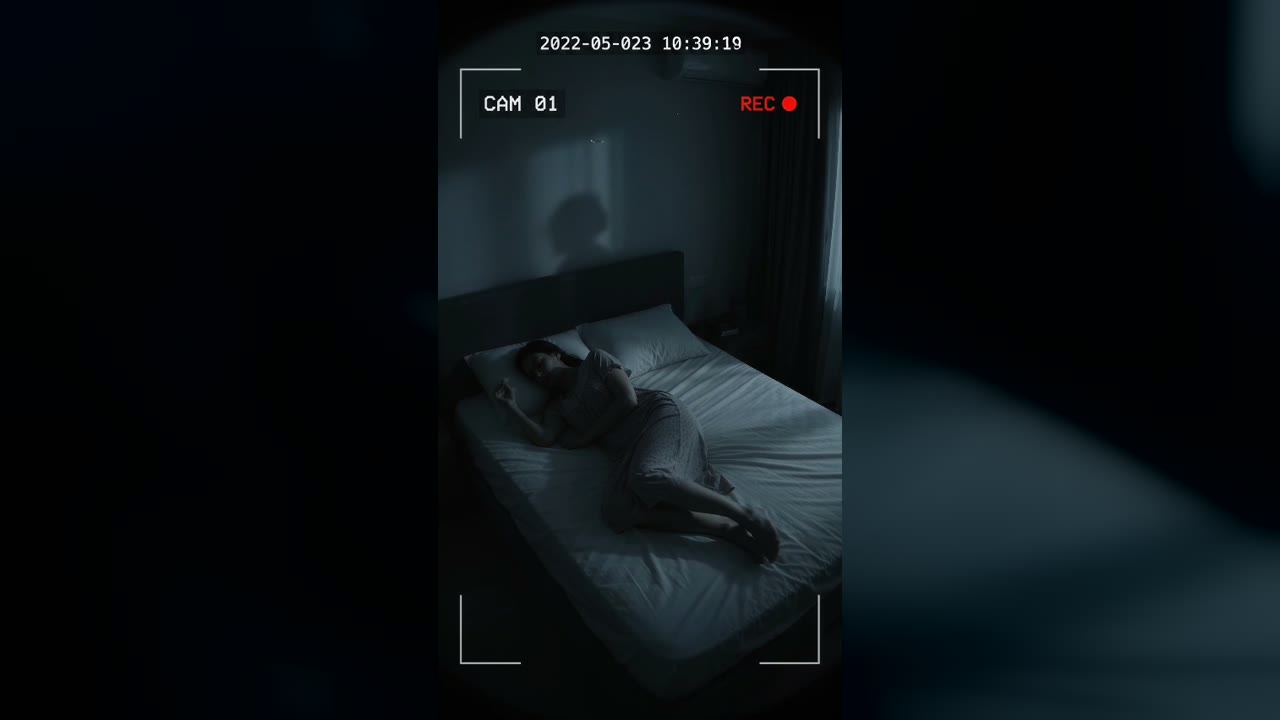
Bedroom Cam From 2022 Shows a Shadow Figure on the Wall Before the Feed Cuts to Static
Marlow Bend, Ontario, Canada · May 23, 2022 · 10:38 PM
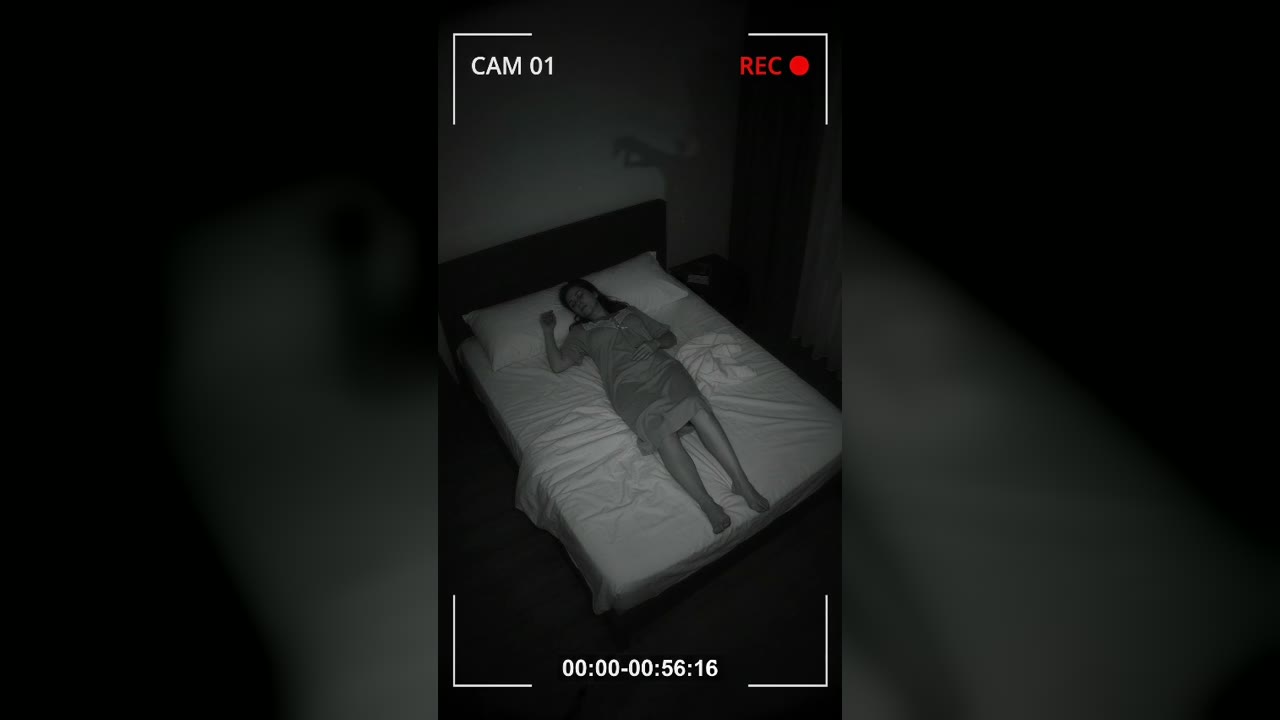
Bedroom Cam Records a Shadow Hand Above a Sleeping Woman's Headboard
Halberd Creek, Oregon, USA · Aug 27, 2026 · 03:14 AM